Xoom energy partnered with ACN is feeding a hungry child per your billing periods when you signed up with your energy bill. Please check with your zip code if the rate is lower than your current gas supplier. In order to find out the rate, make sure you are looking into the section of your current energy bills that talks about the delivery charge (this is the only portion is going to change on your future bill), what is the rate being used there (i.e $amount/therm for gas and $amount/Kwh for electricity). If the rate you see is higher than the rate Xoom are offering (US resident click here, Canadian resident click here ) then switch, I recommend using the sure lock promotion which can guarantee that your bill won't change until that period is over. Beside Energy there are other services that are worthy of subscribing (if your current subscription of similar service is at higher price) such as: Wireless Phone Service, Home Security Service,Credit card processing service for business owners, etc. Each service will allow one child get fed each month through the outstanding "Project Feed Kids" when you pay your subscription fees. Please email me if you need additional information.
Thursday, February 19, 2015


Friday, June 14, 2013
DIY Refrigerator repair
 My long time loyal refrigerator suddenly refused to cool anything down to below 32 degree Fahrenheit. It was beginning of June 2013 and temperature started to raise. We were thinking of getting a new one since this one was over 15 years old. However it turns out that buying and deliver it to the right time when some one be at home is going to cost us more than a week and we still have lots of food which needed to be kept frozen, therefore immediately fixing it sounds better solution than buying one.
.jpg) I thought to give it a try. First I did some online research on how the refrigerators function and their maintenance. I came to know it is common for refrigerators that has a defrost mechanism to not to cool anymore if the excessive ice is build up on it's coil that the defroster failed to defrost. Due to those ice my upper portion of the refrigerator was able to cool down to 32 degree but the buttom portion was not able to cool down that much, the temperature was over 65 degree (I measured using my temperature gun that uses laser technology). Because the cold air was not blown, the refrigerator never was out of the defrost cycle as the ices were built up on the coil and obviously the defroster failed to melt it. An youtube video gave a very good detail of what I needed to know.
I thought to give it a try. First I did some online research on how the refrigerators function and their maintenance. I came to know it is common for refrigerators that has a defrost mechanism to not to cool anymore if the excessive ice is build up on it's coil that the defroster failed to defrost. Due to those ice my upper portion of the refrigerator was able to cool down to 32 degree but the buttom portion was not able to cool down that much, the temperature was over 65 degree (I measured using my temperature gun that uses laser technology). Because the cold air was not blown, the refrigerator never was out of the defrost cycle as the ices were built up on the coil and obviously the defroster failed to melt it. An youtube video gave a very good detail of what I needed to know. This was a Norge Refrigerator on the top right.
The interior look like the picture below.

Step 1: I took the doors off
Step 2: I had to loose extra two screws that were covering the temperature control unit. that looks like the picture on right.
.jpg) Step3. After get the cover off, I pull the controller and It came off like a drawer. you can see how it will look like on the picture. I saw a thick layer of ice covering the cooling coil.
Step3. After get the cover off, I pull the controller and It came off like a drawer. you can see how it will look like on the picture. I saw a thick layer of ice covering the cooling coil.Step 4: I started to crash the ice gently using a kitchen knife, but that was an idiotic act, as I realized I could easily melt them using hair dryer
.jpg) Step 5: I started using hair dryer, then I thought of using warm water, and it turned out to work faster than the hair dryer.
Step 5: I started using hair dryer, then I thought of using warm water, and it turned out to work faster than the hair dryer..jpg)
.jpg) Step 6: I was getting impatient as the melting process was taking too long I used hot water, after melting significant amount of ice I was able to remove the foam cover on the top of cooling coil
Step 6: I was getting impatient as the melting process was taking too long I used hot water, after melting significant amount of ice I was able to remove the foam cover on the top of cooling coil.jpg)
.jpg) Step 7: Still lots of ice to remove, repeated the hair dryer, crushing and throwing hot water couple more time finally it was clean enough to see the cooling coil and the defrost coil seating inside the cooling coil assembly (Picture on right)
Step 7: Still lots of ice to remove, repeated the hair dryer, crushing and throwing hot water couple more time finally it was clean enough to see the cooling coil and the defrost coil seating inside the cooling coil assembly (Picture on right).jpg)
.jpg) Step 8: I found that the one end of the defrost coil is severely corroded, in order to make sure the defrost coil is intact I used my digital multimeter and it shows the continuity between two ends. I re connect the corroded end with electrical tape and put the defrosting coil back where it was.
Step 8: I found that the one end of the defrost coil is severely corroded, in order to make sure the defrost coil is intact I used my digital multimeter and it shows the continuity between two ends. I re connect the corroded end with electrical tape and put the defrosting coil back where it was. .jpg) Step 9: Start assemble all the parts that I dissembled.
Step 9: Start assemble all the parts that I dissembled. Step 10: Start the refrigerator and after a few minute I hear the cooling chember started blowing the cold air again, happy end of my measurable story.
Tips: To avoid this situation, you should always make sure your refrigerator is not overloaded and always have enough space to circulate the air. Also don't forget to clean the rear of your refrigerator and vacuum the air filtration compartment.
Thanks for reading.
Friday, September 7, 2012
Software Engineering by Ian Sommerville, what are the differences between International and domestic edition.
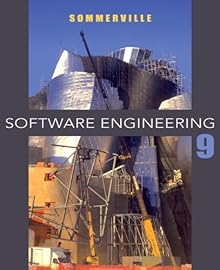
 I ordered Software Engineering by Ian Sommerville two days ago and it arrived from India today. I was little surprised to see the cover of the book which was not the same which was shown in most of the site. The cover of the book that I received is like this:
I knew this book has multiple ISBN associated with : ISBN-10: 0137035152 ISBN-13: 9780137035151.
However I have compared the content with a regular version of the book:
Thursday, June 7, 2012
Making a DIY fitted RealD 3d glass (Passive) with a regular frame.
I have been enjoying my LG 47LW5600 3d TV for a year by now. It came with four pair of nice 3d glasses. I also had a few pairs of reald 3d glasses left from the reald 3d movies that I watched in the theater. These glasses works fine with my 3d tv so I used them whenever we had extra guests visiting us. Those reald 3d glasses were very uncomfortable to me as they were too big to wear. This post is about how I customized those glasses for additional comfort.
Here is Step by Step Procedure with the picture to help anyone who wants a pair of 3d glass that nicely fits.
 Step 1: Gather the tools and items you need:
1. Scissors
2. small flat end screw driver.
3. A eye glasses frame that fits nicely on you (You could buy this type of frame with glasses from 99 cent store which I did)
4. A pair of realD 3d glasses.

Step 2. remove the two temples (Look at the hinge and you will figure out how to pull them off)

Step 3. Using screw driver pry off the upper parts of the main frame.

Step 4. Take out the plastic filtered lenses.

Step 5. Take out the glass from the selected frame (Which you want to turn into a 3d glasses) and keep it on top of the plastic lens and mark the circumference with a pin.
 Step 6. Cut the glass following the outline.
 Step 7. Snap the plastic to the frame where the glass used to be.
Here is Step by Step Procedure with the picture to help anyone who wants a pair of 3d glass that nicely fits.
 Step 1: Gather the tools and items you need:
1. Scissors
2. small flat end screw driver.
3. A eye glasses frame that fits nicely on you (You could buy this type of frame with glasses from 99 cent store which I did)
4. A pair of realD 3d glasses.

Step 2. remove the two temples (Look at the hinge and you will figure out how to pull them off)

Step 3. Using screw driver pry off the upper parts of the main frame.

Step 4. Take out the plastic filtered lenses.

Step 5. Take out the glass from the selected frame (Which you want to turn into a 3d glasses) and keep it on top of the plastic lens and mark the circumference with a pin.


Monday, May 9, 2011
What to do when your SAMSUNG BEHOLD touch screen stopped responding

Frozen touch screen is a common problem that samsung behold users may face very often after using it for a few years. I was one of the unfortunate users of samsung behold phone as it stopped responding after over two years of reliable service. Here is how I solved the issue. The good news is it wasn't that difficult. I just ordered the screen on ebay and it arrived within three days. I opened the back and unscrewed total six of the screws and carefully pry off the inner frame that hold the main circuit board. Disconnecting tape like wires were a piece of cake. You have to be very careful while pry off the lcd screen as the glue was kind of hard to get off. After removing the lcd screen, you can take out the outer touch screen module easily. Then install the new one, turn on the phone and your problem is solved. You can even get a video tutorial about this procedure on youtube. Feel free to leave comments if you want to share your experience or need more information.
Update: Found this video tutorial as many requested:
Tuesday, June 15, 2010
What are the differences between 2004 Toyota Sienna CE and XLE trims.
I have been looking for buying a used minivan. After doing some research on both Honda Odyssey and Toyota Sienna, I decided to buy Sienna.I personally do not like to buy a used car. I am not the kind of person who liked to change car models frequently. I liked to buy a new car and stick to it until it dies. However, certain circumstances prohibiting me to buy a new car. First of all I do not have enough money to avoid financing, Second I have to pay way more for car insurance as I have to have full coverage for the car that is financed.
Now Toyota sienna comes with a few trims like: CE, LE, XLE, XLE LIMITED. A few of these trims often come with AWD and 8 Passenger seating option. I really don't know what are the exact differences between CE ,LE,XLE other than a few extra features.(Purpose of this post is, my reader may give me more information by the comments and I will learn more). So far The things that I learnt are:
 CE:
CE:
This is the base model. Which has same engine and other mechanical components. However the internal looks is different, the climate controls it has is slightly different than XLE as CE has knobs instead of a single press button for various vent control. Beside you see only cloth seats by default. I am not sure if they all are equipped with power sliding doors and power rear Hatch lift gate.
LE:
This is the upgraded model from CE, that's all I know. I saw that it has same dashboard and controls like CE, only thing I know it may come with 8 passengers and awd if you add it. If you know any more please let me know by your comments.
XLE: It is the Trim that include many features by default, like leather seats, and button controled vent on dash. It has power rear Hatch lift gate. It may include some other options like sun roof/moon roof (LIMITED) , a overhead Entertainment system,parking sensors and many other option depending on what limited package is added. This is all I know about this three trims. I am still searching online to sort out exact differences. Threrefore, It will be highly appreciated, if you have more information and share those here through your comments. Thanks for reading.
Update: I have found the following differences between Base Model CE and upgraded model XLE: (collected from http://www.motortrend.com , common items are not shown)
2004 Toyota Sienna Minivan Performance & Efficiency Standard Features ****XLE***
Despite the fact that it has same engine as CE( I guess for being little heavier) XLE goes 18 mpg in city and 24 mpg in high way.
****CE****
Goes 19 mpg in city and 27 mpg in highway.
**********************************************************
2004 Toyota Sienna Minivan Handling, Ride & Braking Standard Features
****XLE*******
Four disc brakes including two ventilated discs
Electronic traction control via ABS & engine management
Immobilizer
Fullsize steel rim under body spare wheel
****CE***********
Two disc brakes including two ventilated discs (instead of
4 disc breaks)
No Electronic traction control
No Immobilizer
Spacesaver(instead of full size) steel rim under body spare wheel
**********************************************************
2004 Toyota Sienna Minivan Exterior & Aerodynamics Standard Features
****XLE*************
Electric trunk/hatch pull down
Front fog lights
Heat reflective glass
Luxury trim leather on gearknob, wood/woodgrain on doors and wood/woodgrain on dashboard
Remote control operation opening rear ¼ windows
Weights: gross vehicle weight rating (lbs) 5,690, curb weight (lbs) 4,365, gross trailer weight braked (lbs) 3,500 and max payload (lbs) 1,325
******CE**********
-No electric Trunk
-No fog lights
-No Heat reflective glass
-No Luxury trim leather on gearknob,wood/woodgrain on doors and wood/woodgrain on dashboard
-No remote control operation opening rear 1/4 windows
-Weights: gross vehicle weight rating (lbs) 5,690, curb weight (lbs) 4,120, gross trailer weight braked (lbs) 3,500 and max payload (lbs) 1,570
******************************************************
2004 Toyota Sienna Minivan Interior Standard Features
*****XLE********
Air conditioning with climate control, rear control for
climate control and rear outlet 3
Diversity antenna
Peripheral anti-theft protection
JBL RDS audio system with AM/FM, CD player and cassette
Below seat storage under passenger seat
Cargo area light
Coming home device
Compass
Computer with average fuel consumption, instantaneous fuel consumption and range for remaining fuel
Cruise control
External temperature
Floor mats
Bucket electrically adjustable driver seat with height adjustment, lumbar adjustment, four adjustments and tilt adjustment , bucket passenger seat
Height adjustable 3-point reel front seat belts on driver seat and passenger seat with pre-tensioners
Garage door opener
Headlight control with time delay switch-off and dusk sensor
Remote audio controls
Remote fuel filler door release
Front seat back storage
Ten speaker(s)
Leather covered multi-function steering wheel with tilt adjustment and telescopic adjustment
Ventilation system with recirculation setting and micro filter
**********CE*************
Air conditioning with rear outlet (No climate control for
both rear and front)
Fixed mast antenna (No Diversity antena)
Manufacturer's own audio system with AM/FM, CD player and cassette (NO JBL audio system)
Automatic drive indicator on dashboard
NO Below seat storage under passenger seat.
Cargo area light
No Coming home device
No Compass (attached to rear view mirror)
No Computer with average fuel consumption, instantaneous fuel consumption and range for remaining fuel.
No Cruise control (I couldn't believe it? it should be a standard feature)
No External temperature
No Floor mats (Why not? I thought all cars has it)
Bucket driver seat with height adjustment , bucket passenger seat (No electronic control) Height adjustable 3-point reel front seat belts on driver seat and passenger seat with pre-tensioners
No Garage door opener
No Headlight control with time delay switch-off and dusk sensor
No Remote audio controls
No Front seat back storage
Six speaker(s) (instead of ten speakers)
Plastic steering wheel with tilt adjustment and telescopic adjustment(Not leather covered)
Ventilation system with recirculation setting but no microfilter
After learning both spec I decided to purchase XLE trim instead of CE or LE.
Now Toyota sienna comes with a few trims like: CE, LE, XLE, XLE LIMITED. A few of these trims often come with AWD and 8 Passenger seating option. I really don't know what are the exact differences between CE ,LE,XLE other than a few extra features.(Purpose of this post is, my reader may give me more information by the comments and I will learn more). So far The things that I learnt are:
 CE:
CE:This is the base model. Which has same engine and other mechanical components. However the internal looks is different, the climate controls it has is slightly different than XLE as CE has knobs instead of a single press button for various vent control. Beside you see only cloth seats by default. I am not sure if they all are equipped with power sliding doors and power rear Hatch lift gate.
LE:
This is the upgraded model from CE, that's all I know. I saw that it has same dashboard and controls like CE, only thing I know it may come with 8 passengers and awd if you add it. If you know any more please let me know by your comments.

XLE: It is the Trim that include many features by default, like leather seats, and button controled vent on dash. It has power rear Hatch lift gate. It may include some other options like sun roof/moon roof (LIMITED) , a overhead Entertainment system,parking sensors and many other option depending on what limited package is added. This is all I know about this three trims. I am still searching online to sort out exact differences. Threrefore, It will be highly appreciated, if you have more information and share those here through your comments. Thanks for reading.
Update: I have found the following differences between Base Model CE and upgraded model XLE: (collected from http://www.motortrend.com , common items are not shown)
2004 Toyota Sienna Minivan Performance & Efficiency Standard Features ****XLE***
Despite the fact that it has same engine as CE( I guess for being little heavier) XLE goes 18 mpg in city and 24 mpg in high way.
****CE****
Goes 19 mpg in city and 27 mpg in highway.
**********************************************************
2004 Toyota Sienna Minivan Handling, Ride & Braking Standard Features
****XLE*******
Four disc brakes including two ventilated discs
Electronic traction control via ABS & engine management
Immobilizer
Fullsize steel rim under body spare wheel
****CE***********
Two disc brakes including two ventilated discs (instead of
4 disc breaks)
No Electronic traction control
No Immobilizer
Spacesaver(instead of full size) steel rim under body spare wheel
**********************************************************
2004 Toyota Sienna Minivan Exterior & Aerodynamics Standard Features
****XLE*************
Electric trunk/hatch pull down
Front fog lights
Heat reflective glass
Luxury trim leather on gearknob, wood/woodgrain on doors and wood/woodgrain on dashboard
Remote control operation opening rear ¼ windows
Weights: gross vehicle weight rating (lbs) 5,690, curb weight (lbs) 4,365, gross trailer weight braked (lbs) 3,500 and max payload (lbs) 1,325
******CE**********
-No electric Trunk
-No fog lights
-No Heat reflective glass
-No Luxury trim leather on gearknob,wood/woodgrain on doors and wood/woodgrain on dashboard
-No remote control operation opening rear 1/4 windows
-Weights: gross vehicle weight rating (lbs) 5,690, curb weight (lbs) 4,120, gross trailer weight braked (lbs) 3,500 and max payload (lbs) 1,570
******************************************************
2004 Toyota Sienna Minivan Interior Standard Features
*****XLE********
Air conditioning with climate control, rear control for
climate control and rear outlet 3
Diversity antenna
Peripheral anti-theft protection
JBL RDS audio system with AM/FM, CD player and cassette
Below seat storage under passenger seat
Cargo area light
Coming home device
Compass
Computer with average fuel consumption, instantaneous fuel consumption and range for remaining fuel
Cruise control
External temperature
Floor mats
Bucket electrically adjustable driver seat with height adjustment, lumbar adjustment, four adjustments and tilt adjustment , bucket passenger seat
Height adjustable 3-point reel front seat belts on driver seat and passenger seat with pre-tensioners
Garage door opener
Headlight control with time delay switch-off and dusk sensor
Remote audio controls
Remote fuel filler door release
Front seat back storage
Ten speaker(s)
Leather covered multi-function steering wheel with tilt adjustment and telescopic adjustment
Ventilation system with recirculation setting and micro filter
**********CE*************
Air conditioning with rear outlet (No climate control for
both rear and front)
Fixed mast antenna (No Diversity antena)
Manufacturer's own audio system with AM/FM, CD player and cassette (NO JBL audio system)
Automatic drive indicator on dashboard
NO Below seat storage under passenger seat.
Cargo area light
No Coming home device
No Compass (attached to rear view mirror)
No Computer with average fuel consumption, instantaneous fuel consumption and range for remaining fuel.
No Cruise control (I couldn't believe it? it should be a standard feature)
No External temperature
No Floor mats (Why not? I thought all cars has it)
Bucket driver seat with height adjustment , bucket passenger seat (No electronic control) Height adjustable 3-point reel front seat belts on driver seat and passenger seat with pre-tensioners
No Garage door opener
No Headlight control with time delay switch-off and dusk sensor
No Remote audio controls
No Front seat back storage
Six speaker(s) (instead of ten speakers)
Plastic steering wheel with tilt adjustment and telescopic adjustment(Not leather covered)
Ventilation system with recirculation setting but no microfilter
After learning both spec I decided to purchase XLE trim instead of CE or LE.
Friday, May 7, 2010
Why Window.open function didn't work on IE for me
I just wanted to share a recent problem that I faced while developing a GWT application. I was adding a button that should open a specified jsp page in a new window. I used famous Window.open function.It worked flawlessly in Firefox but not in IE.
I googled for possible solution and couldn't detect exactly what causing this mysterious problem as other user used same code as mine. Even one of my fellow worker was able to make it work in both Firefox and IE, while mine worked only in Firefox. Then I found a silly difference that caused all this problem. For example my colleague used:
Window.open("edit.jsp","abc","");
and I used:
Window.open("edit.jsp","Edit A Page","");
After playing with the window name parameter,I found out the fact that window name must be without space in order to be compatible with Microsoft Internet Explorer. I hope this will help any other developer who were wondering why their Window.open function didn't work on IE.
If my post help any one to solve their problem, I will be delighted. Thank you very much for reading.
I googled for possible solution and couldn't detect exactly what causing this mysterious problem as other user used same code as mine. Even one of my fellow worker was able to make it work in both Firefox and IE, while mine worked only in Firefox. Then I found a silly difference that caused all this problem. For example my colleague used:
Window.open("edit.jsp","abc","");
and I used:
Window.open("edit.jsp","Edit A Page","");
After playing with the window name parameter,I found out the fact that window name must be without space in order to be compatible with Microsoft Internet Explorer. I hope this will help any other developer who were wondering why their Window.open function didn't work on IE.
If my post help any one to solve their problem, I will be delighted. Thank you very much for reading.
Wednesday, September 2, 2009
How to put 'Email me" form on your blog

In this post, I will describe, how you can add a "email me" section in your blog. Wouldn't it be nice, if you allow your reader to reach you by direct email instead of writing a private message on the comments? Yes you can do that very easily. Here
is how you will do it:
Step 1. Go to http://www.emailmeform.com and sign up for a free account.
Step 2. Create a form by following there step by step guide
Step 3. Click "get the code" link and copy the code.
Step 4. Paste the code in a new Post and name it "Email me", provide the link to this post any where you want your reader to reach you.
I hope this tutorial will help you to add "Email me" functionality to your blog.
Thanks,
Sumon
Email me
Please use the following form to reach me with any question and concern about this site. Your opinions are highly appreciated and will encourage me to improve the blog.
Wednesday, August 26, 2009
How to Make Money through your website by Adsense

I will show you step by step, how you can make money using your website by google adsense. For more information please visit: http://adsense.google.com.
You will need to follow following steps,
1. Get a website, with administrative privileges. (you may also use your blogspot site, as they allow you to add your own javascripts widgets, to get one go to http://blogspot.com, However, if you want to make more money in shorter time, its better to pay for a site. To get such a site at the lowest possible fee(as low as 30 dollar per year which includes domain registration and hosting), you may contact +8801912955006(Linkinworld.com)) or you can request through this page:
2.Go to http://adsense.google.com and sign up for an adsense account using your existing google email account.
3.Go to your adsense page, and click on "manage ads", select the preferred size and collect the code.
4.Go to your website, and embed the code google gave you with your existing code. Those of you, who use blogspot site, can use "lay out" option and "ad a gadget" then select "your own javascript/html" gadget. Paste the code in the box and click "save". You are done.
5.Start submitting some nice posts, that people might be attracted at. If they click on the google ads you will be making money. For additional help you can always contact me.
Thanks,
sumon
Wednesday, August 19, 2009
Download Aero Studio to create Multiboot DVD/CD English Version 2
To see this tutorial in বাংলা click here.
In the last part we have collected Files. If you have done everything right, your multiboot Folder should have the following contents:

Now Lets start the Aero Studio and click on Format then "Settings"

Chose a picture for the background.

Put required Buttons by clicking on Control-->Button

It may look similar to this:

I configured my button as following:


Now click on the "menu generator" icon as bellow:

Fill the forms like bellow:

Click on "Go" after it done something, click "Cancel" to exit the dialog box.
Now click on the "Deploy menu" Icon as bellow:

Now let us feel up the options like the window below:

click "Next" and then Pick the source (c:\sumon\multiboot or whatever folder you have used). See the example below.

Now its the time to use the ISO file it just generated to burn to a CD/DVD


You may directly burn to a CD and skip creating an ISO file, but I didn't try that. Instead I created ISO file first and then burnt it on a CD. Hope this tutorial will help you to build your multiboot cd/dvd. Please let me know if you faced any problem by commenting here.
Thanks,
Sumon
Update: A few of my readers reported that, when they tried to make xp sp2 CD following this tutorial, it didn't work. Therefore I will try to investigate it, and let you know as soon as possible.
In the last part we have collected Files. If you have done everything right, your multiboot Folder should have the following contents:
Now Lets start the Aero Studio and click on Format then "Settings"
Chose a picture for the background.
Put required Buttons by clicking on Control-->Button
It may look similar to this:
I configured my button as following:
Now click on the "menu generator" icon as bellow:
Fill the forms like bellow:
Click on "Go" after it done something, click "Cancel" to exit the dialog box.
Now click on the "Deploy menu" Icon as bellow:
Now let us feel up the options like the window below:
click "Next" and then Pick the source (c:\sumon\multiboot or whatever folder you have used). See the example below.
Now its the time to use the ISO file it just generated to burn to a CD/DVD
You may directly burn to a CD and skip creating an ISO file, but I didn't try that. Instead I created ISO file first and then burnt it on a CD. Hope this tutorial will help you to build your multiboot cd/dvd. Please let me know if you faced any problem by commenting here.
Thanks,
Sumon
Update: A few of my readers reported that, when they tried to make xp sp2 CD following this tutorial, it didn't work. Therefore I will try to investigate it, and let you know as soon as possible.
How to create Multiboot CD/DVD part 2
আগের পর্বে আমরা ফাইল গুলো সংগ্রহ করেছি, এবারে সেগুলো কে কাজে লাগিয়ে এরো স্টুডিও দিয়ে সিংগেল সিডি বা ডিভিডি তৈরীর পালা
সব কিছু ঠিক থাকলে, নীচের ছবির মত হবে আপনার বুটেবল ইমেজ ফোল্ডারের কন্টেন্টঃ
সব কিছু ঠিক থাকলে, নীচের ছবির মত হবে আপনার বুটেবল ইমেজ ফোল্ডারের কন্টেন্টঃ
How to create Multiboot CD/DVD part 1


To view the following tutorial in English, please click here.
প্রিয় পাঠক বন্ধুরা, আমরা অনেকেই ভাবি যে একটি ডিভিডি বা সিডির মধ্যে অধিক সফটওয়্যার ভরে ফেলে সিডির সংখ্যা কমিয়ে ফেলার কথা। কিন্তু যখন সেটা বুটেবল সিডি হয় তখন একাধিক সিডি একত্রিকরন প্রক্রিয়া টি জটিল হয়ে দাঁড়ায়। আজ আমি সেটাই সহজ ভাবে উপস্থাপন করব। যদিও আজকের এক্সপেরিমেন্ট এ আমি সাধারন সিডি ব্যবহার করেছি, তবে আপনারা ইচ্ছা করলে ডিভিডি ও ব্যবহার করে আরও বেশী বুটেবল সিডি একত্রিত করতে পারবেন। আজকের টিউটরিয়ালে আমাদের যা যা লাগবে তা হলঃ
Tuesday, July 21, 2009
Download IZArc to open almost any compressed file
Download the software from here , In case the link is broken, search google for IZArc. If you need additional help to operate the software let me know by comments.
Using this software you can open almost any kind of zip/binary image files including .bin and .iso files. the supported files are : (see the image)
Using this software you can open almost any kind of zip/binary image files including .bin and .iso files. the supported files are : (see the image)
Thanks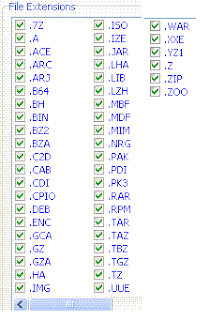

Friday, July 17, 2009
Download Aero Studio to create Multiboot DVD/CD English Version 1
To download the Aero Studio click here.
টিউটোরিয়াল টি বাংলায় দেখতে চাইলে এখানে ক্লিক করুন।
Many of you have couple of windows version in different CD and always wish to reduce the number of disks. Well a free software named Aero Studio could solve your problem. To download the software please visit here. Here are a few screen shots with instruction step by step.
Things that you need:
1. Aero Studio 2007
2. ISO editor (ie. PowerISO)
3. Bootable CDs that you want to combined (In this case, I used Macrium reflect rescue CD and windows XP 3)
Before going further, just wanted to inform you that you may acomplish this very same task by following way, (you may even use bbie to extract boot image, however, here I posted the way I made it) different than that of mine.
Now Let us start the job.
First of all, you will need the required files from both CDs. I have started with XP-sp3 CD, pop the CD in to your ROM drive and hit the copy button of your PowerISO. Chose ".iso" option. Put the ".iso" file into some folder, for example: c:\sumon\multiboot\XP3.iso, do the same thing for Rescue CD and create c:\sumon\multiboot\Rescue.iso

Now pick the ISO file you have just created and start extracting in full to the same directory: c:\sumon\multiboot\
(do the same for other CDs)


Now using the "Delete" button delete all folders inside the iso file(Just the folder not the files in the home directory as this are needed for iso file to work along with the built in bootable info). After removing the folders, click save.
Again do the same thing for all ISO

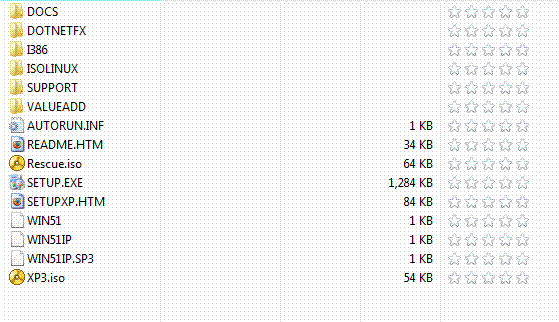
For example, your XP3.iso will have only the following contentes after delete.

Now 50% of the task is done, Lets move on to the 2nd part.
টিউটোরিয়াল টি বাংলায় দেখতে চাইলে এখানে ক্লিক করুন।
Many of you have couple of windows version in different CD and always wish to reduce the number of disks. Well a free software named Aero Studio could solve your problem. To download the software please visit here. Here are a few screen shots with instruction step by step.
Things that you need:
1. Aero Studio 2007
2. ISO editor (ie. PowerISO)
3. Bootable CDs that you want to combined (In this case, I used Macrium reflect rescue CD and windows XP 3)
Before going further, just wanted to inform you that you may acomplish this very same task by following way, (you may even use bbie to extract boot image, however, here I posted the way I made it) different than that of mine.
Now Let us start the job.
First of all, you will need the required files from both CDs. I have started with XP-sp3 CD, pop the CD in to your ROM drive and hit the copy button of your PowerISO. Chose ".iso" option. Put the ".iso" file into some folder, for example: c:\sumon\multiboot\XP3.iso, do the same thing for Rescue CD and create c:\sumon\multiboot\Rescue.iso
Now pick the ISO file you have just created and start extracting in full to the same directory: c:\sumon\multiboot\
(do the same for other CDs)
Now using the "Delete" button delete all folders inside the iso file(Just the folder not the files in the home directory as this are needed for iso file to work along with the built in bootable info). After removing the folders, click save.
Again do the same thing for all ISO
For example, your XP3.iso will have only the following contentes after delete.
Now 50% of the task is done, Lets move on to the 2nd part.
Tuesday, July 14, 2009
How to convert musics on tape to mp3 files
I know, this is now a quite old trick to perform, since most of us already have converted our old good songs on the tapes to CD or mp3. However, many of my friends still wonder how to do this very easily. I have written this article to just help them. The following items will be needed.
1. PC that has a line in port (Most of the sound cards that are made for a desktop PC, has this port. However, I saw many laptops are not equipped with line in port. If you have no choice but use one of the laptops without the port, you can try on mic in port(You have to fine tune and monitor precisely before initiating the recording process, this job is going to be very tedious to get optimised audio signal)
2. Free Software for Recording and encoding. (1.92 MB in size, if the link dose not work, search google for "CDex").
3. Free Software for slicing audio depending on silence. (Not Necessary, unless you want to convert the whole tape at once and later on split the tracks by detecting silence in between). The size of this software is 216 KB only, if the link dose not work, search google for "Slice Audio Splitter".
4. A Tape player that has a audio output (headphone jack, even an Walkman will be OK).
5. A cable that can connect one side to line in put of the PC and other side on headphone jack of Tape player. (Many 99 cents store have this type of cable in their stock)
You can use any software of your choice, I have given two names above which are free and will fulfill our desire easily.
In high level description, here is what we need to do. First we have to put our favorite Tape in the player, connect the player with PC using the jack I described above. Now we need to record the whole tape using the first software(CD-ex) using record from line in feature. If you only want the track you like most, you can monitor the recording and stop it whenever you think you are done. However, if you want to record the entire tape, you can let it run and check back after an hour or so and stop it after the whole tape is recorded. Then you can split the tracks using the free software (2nd one, slice audio splitter) , which will detect the silence between tracks and splits it. If any one needs detail instruction please leave a comments and I will do it whenever I will have time.
Thanks for reading.
1. PC that has a line in port (Most of the sound cards that are made for a desktop PC, has this port. However, I saw many laptops are not equipped with line in port. If you have no choice but use one of the laptops without the port, you can try on mic in port(You have to fine tune and monitor precisely before initiating the recording process, this job is going to be very tedious to get optimised audio signal)
2. Free Software for Recording and encoding. (1.92 MB in size, if the link dose not work, search google for "CDex").
3. Free Software for slicing audio depending on silence. (Not Necessary, unless you want to convert the whole tape at once and later on split the tracks by detecting silence in between). The size of this software is 216 KB only, if the link dose not work, search google for "Slice Audio Splitter".
4. A Tape player that has a audio output (headphone jack, even an Walkman will be OK).
5. A cable that can connect one side to line in put of the PC and other side on headphone jack of Tape player. (Many 99 cents store have this type of cable in their stock)
You can use any software of your choice, I have given two names above which are free and will fulfill our desire easily.
In high level description, here is what we need to do. First we have to put our favorite Tape in the player, connect the player with PC using the jack I described above. Now we need to record the whole tape using the first software(CD-ex) using record from line in feature. If you only want the track you like most, you can monitor the recording and stop it whenever you think you are done. However, if you want to record the entire tape, you can let it run and check back after an hour or so and stop it after the whole tape is recorded. Then you can split the tracks using the free software (2nd one, slice audio splitter) , which will detect the silence between tracks and splits it. If any one needs detail instruction please leave a comments and I will do it whenever I will have time.
Thanks for reading.
Monday, July 13, 2009
Monday, July 6, 2009
Download Auto Run Virus remover
Thursday, July 2, 2009
Download Adsense Tracking Software
Wednesday, July 1, 2009
how to capture screen cast in an easiest way
Are you wondering how you can create a screen cast to demonstrate an application you have been using and want to share with your friends? well it's not that heard at all, if you have CamStudio 2.5 beta . It is an absolutely free software with all the functionality you need. You may download it from this link or by visiting http://download.cnet.com/CamStudio/3000-13633_4-10067101.html?tag=mncol.
The Pros: You can pause and record , in capture fox (add ons of firefox) you can't do that. The Installation is easy, just download the 1.2 megabyte file and unzip it, you can also keep it in your jump drive (usb pen drives,sd cards etc). You can even transfer it to flash video format. You can enable auto pan feature which will track your mouse pointer and automatically capture that portion.
Cons: In order to improve the performance you need to have a good settings for both video and audio option. Please choose the settings options care fully.
Here is a sample video that I created with Cam studio (this one without voice, but you can create with voice as well) You may reduce file size by reducing region size and changing the video outpu format to flash(swf). If you have any problem operating this software you may write a comment here, I will try my best to give you a solution.
The Pros: You can pause and record , in capture fox (add ons of firefox) you can't do that. The Installation is easy, just download the 1.2 megabyte file and unzip it, you can also keep it in your jump drive (usb pen drives,sd cards etc). You can even transfer it to flash video format. You can enable auto pan feature which will track your mouse pointer and automatically capture that portion.
Cons: In order to improve the performance you need to have a good settings for both video and audio option. Please choose the settings options care fully.
Here is a sample video that I created with Cam studio (this one without voice, but you can create with voice as well) You may reduce file size by reducing region size and changing the video outpu format to flash(swf). If you have any problem operating this software you may write a comment here, I will try my best to give you a solution.
Subscribe to:
Posts (Atom)
RelatedPost
