Saturday, June 20, 2009

Where To Watch Live Cricket For Free

Every one who loves cricket, had been extensively searching all the web for the opportunity to watch the Final for free. I have been watching a few games on the following site:

http://live-cricket-time.blogspot.com/

Since the site will be overwhelmed by the cricket lover it will be a good idea to join before the bandwidth ran out. However, it is possible that due to high traffic the blogspot site administrator may disable the site as well. Let us hope for the Best.

To get the future schedule of the Cricket Matches click here.

Good luck watching the Cricket Final for free.


How to view unicode Bangla on your Windows PC

Since Unicode fonts are very famous these days, we should all update our PC to be able to take the advantage of Unicode fonts. Many of us are not aware of this Unicode fonts. If your Windows PC are not being updated constantly since service pack 2, your PC may also lack the capability of showing Unicode Bengali fonts. Here is how you can fix the problem.

1. Download the Unicode bangla fonts
a) Download vrinda. (Those of you who see Bengali but very small can delete C:\windows\fonts\vrinda.ttf file and replace it with this vrinda font)
b) Download Shyam Rupali Font.

2. Copy the fonts to your control panels' Fonts folder (or X:\windows\fonts folder, replace the 'X" your system drive letter )

If you have followed the instruction correctly, after refreshing your browser you will see the bellow line in Bengali.

সাবাস! অবশেষে আপনি ইউনিকোড বাংলা ফন্ট দেখতে পেলেন। এখন থেকে যে সব ওয়েবসাইট ইউনিকোড ব্যবহার করে, সেসব ওয়েবসাইট এর লেখা পড়তে আপনার আর কোন সমস্যা হবে না। তবে ইত্তেফাক বা প্রথম আলো পড়তে হলে তাদের ওয়েবসাইট এর নির্দেশ অনুসরন করে তাদের বাবহৃত ফন্ট্‌ ডাউনলোড করে ইন্সটল ক্করে নিন।
ধন্যবাদান্তে ,
সুমন

Now Most of you should be able to follow the high level instruction given above, However a few of you who has very limited knowledge of installing fonts, may get lost in between. If that is the case, I have screen shots that clearly shows how the process look like on a XP machine. Here we go:

Step 1:
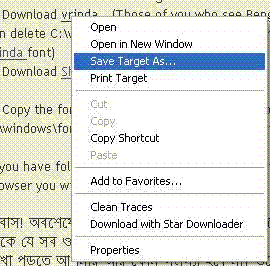
Click on the "vrinda" link that I provided,it will take you to a different website where the font is available. Right click on the download link of that page (asuming you have Internet Explorer as browser) pick "save target as" (For firefox browser select "save link as") :


Step 2:
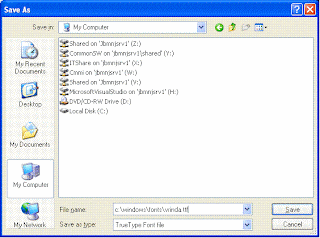
On the following window(save target as window asking where you want to save the file to) click on "My computer" icon from left pane, and type c:\windows\fonts\vrinda.ttf If your windows installation is in different drive (ie, E:, D:, etc) use that letter instead of c:. Click on "Save". If it saves successfully then you are done just needs to refresh the browser and you are done (you may come back to this page, when your browser starts again and check if you can read the Bangla sentences written on this page. Otherwise, follow next.


Extra Steps:

Extra 1:

Some of you who may already have an older version (Those who see bangla font but too small to read) and will see some pop up dialog like this:


Extra 2:

Click on" No". you now need to remove the old version. To do that go to your windows xp control panel by clicking on 'Start---->control panel"


many of your control panel may be in category mode. For convenience lets switch it to "classic" view by clicking on the circled link.

The window look will be changed like bellow:


Extra 3:

Now lets double click on Fonts folder. Since "vrinda" starts with 'v' the file will be located all the way bellow (assuming the file is arranged by name). When we find the "vrinda" font we will right click on it and select "delete". If "are you sure" window pops up click "yes" and go to step:2, or else follow next step.


Extra 4:

If the browser is open or the font is being used anywhere else it will show you an error message like bellow: Click "Ok" .
You will need to shut down all your browsers and word document files which ever is opened. Then follow Extra 3: and onward again.


I hope this tutorial will help you to solve the Unicode Bangla Font viewing problem. if you still have problem to view Bangla Unicode fonts, please feel free to post a comment here.

Thanks for reading.

Easiest Way to Write Bengali on your PC

I am originally from Bangladesh. I always loved to write in Bengali on my PC whenever possible. I really hated writing Bengali by using English character. However, I never trained my self on traditional Bengali Typing media (ie, Munir, Bijoy, Unijoy keyboard). As a matter of fact I hate them and I found them pretty difficult to follow as I am very used to with English keyboard. Earlier days, when unicode wasn't that famous I developped my own type face named "Sumon Bangla Font" which followed different keymaps (phonetical , for example, a for akar, A for oa, b for boa, almost close to proshikha but not exactly). However the true type fonts (non-Unicode) are no longer encouraged to use as Unicode became much more famous these days.

Now we all are familiar with unicode fonts. I think it is the best means of writing. Each language has it's own assigned code for it's all alphabets. I had used a lot of software that dose the job of writing bangla on the PC. Among all of them, I found AVRO KEYBOARD ( অভ্র কী-বোর্ড) is the best, specially the portable version.

Any one can download the portable Avro from this link, and just extract it to any portable media (SD cards, usb storage drive, etc) ant it will be ready to use. Avro may prompt you to install complex indic scripts (if it is not previously installed on your system), otherwise you don't have to install anything else. You can start it by double clicking on "Avro Keyboard.exe" and you are ready. Where ever you want to write in bangla, just point your mouse there and hit "F-12" keys on your keyboard and you will be writing bangla in a second. To switch back to english you again press "F-12" and you will be writing in english. It is good for all version of Windows. (Even on Vista, I was able to use it with intermittent program crash[no big deal]).

[ From here onward I will use some bengali letters, in case you don't see them for lack of unicode support on your pc , please view my post on "How to view unicode bangla on your PC" ]

The best part of Avro is it's very flexibla and gives user a lot of choices. One can even chose between traditional bangla keyboard that are previously existed (ie unijoy, bornona, National, etc). I always like the phonetic keyboard, as it automatically translate what ever I write in english letter to bengali. I can easily customise my own words. For example, if I want to write ভালো , without customize the auto correct dictionary I need to type "valO". But using the auto correct tool i made avro automatically write "ভালো" when I type "valo". I also had used avro auto correct tool to show many english word (that we usually use like bengali) to showed up correctly. For example if I type "driver", My avro (as I customized it) will output "ড্রাইভার". Customizing Avro auto correct option is very easy. All you need to do is right clicked on this icon:

A menu will appear like the following window:


From this menu click on Customize ovro keyboard. Then on the next window chose "Avro Phonetic..." After that click on "Auto correct entries". Then A window like this (Look at the screen shot bellow) will appear:

On this Auto correct window on the write hand side type what you want to type, for example "ktritoggota ", now on the right side type what you actually want avro to output on the screen " কৃতজ্ঞতা" (For which you actually need to type: " krritoggota" ) you may see the keyboard lay out to find out how the keys are mapped. After you are done you click on "save". From Next onward, when you type "kritoggota" ovro will show কৃতজ্ঞতা instead of ক্রিতজ্ঞতা .


Avro saves this correction in a file named "autodict.dct" in Avro Keyboard program folder. You may replaced this file with some one else's customized file. For example you can replace the autodict.dct file with my "autodict.dct" file which has already over 9000 customized word from here . After you replace the file you need to restart Avro software.

As of today, I personally think Avro is the best media to write Bengali on your Windows PC. However, Avro yet not available for linux, you may check on Avro's home page for more updated information.

Swine flu what to do?

Swine influenza or swine flu is nothing new. The affect of swine flu can be traced back as early as 1918. The type of virus that caused this flu to human back then was associated with H1N1 . It was also common in pigs. However, the 2009 flu outbreak is due to a new strain of subtype H1N1 not previously reported in pigs. Therefore, it is little mysterious where exactly this type has came from. While waiting for the appropriate vaccine becomes available, we have to take very good care of our personal hygiene. We should all do the following things

1. Wash you hand and keep it clean as much as possible.
2. Even though the strain of this virus is not directly associated with pig but it could be transmitted to/from pigs easily, therefore it's better to avoid direct contact with live pig. And while cooking the meat it should be cooked properly.

To learn more about it's history and current status plese click here


Friday, June 19, 2009

Windows XP add/remove program tool problem? solution is here

Recently I faced this weired problem: all on a sudden my control pannel’s “Add/Remove Programs” stopped working. I click on it but nothing is shown. After searching a while I got very limited information. On msdn site I found something that is applicable to windows server 2000. However I followed it but it didn’t solve my problem. After further search and wasting more time I finally got the solution. Here is what you have to do:

Step 1 to 8 is identical what the msdn forums says, In my case I have to do an additional step (step 9) and reboot my machine.

1. Click Start, and then click Run.
2. In the Open box, type cmd, and then press ENTER.
3. In the Command window, type regsvr32 mshtml.dll, and then press ENTER.
4. Click OK to confirm that the registry entry has been added.
5. In the Command window, type regsvr32 shdocvw.dll -i, and then press ENTER.
6. Click OK to confirm that the registry entry has been added.
7. In the Command window, type regsvr32 shell32.dll -i, and then press ENTER.
8. Click OK to confirm that the registry entry has been added.
9. In the Command window, type REGSVR32 APPWIZ.CPLand then press ENTER.
10. Click OK to confirm that the registry entry has been added.

11. Close the Command window and restart your pc.

Hope this will solve your problem as mine did.

RelatedPost

Blog Widget by LinkWithin